Technology
Tech tips for daily use: trigger the camera with volume rockers, measure length and area with your phone, and make a DIY car heads-up display.





The objective of tech is to make our lives easier, and boy has it. Knowing these tips and tricks can save you from many a pickle.
Use your Volume Rockers as a shutter button.
If you are a serious photography buff like most of us here at the office and are constantly striving to have the best Instagram feed, chances are that you may have come across a situation where you had to click a photo at a rather odd angle. You may have had to reach around precariously for the shutter icon, and at times, may have hit some other icon.
 L’Officiel India DigitalRead L’Officiel India in the digital libraryEvery issue and every cover story, on TCG Media.Read now
Just use your volume rockers as a surrogate shutter button. This is really useful, especially if you are clicking selfies with your main camera.
Measure length and area using your camera

Thanks to the ever increasing capabilities of modern smartphones, we have arrived at a point where augmented reality is finally a thing. One implementation of augmented reality is to measure all kinds of things. Forgot to carry your measuring tape or ruler on an assignment? Fret not! Although the default measuring app on most phones is just adequate and should work fine, we recommend downloading a good third party app.
Make a virtual, DIY Heads up Display for your car.
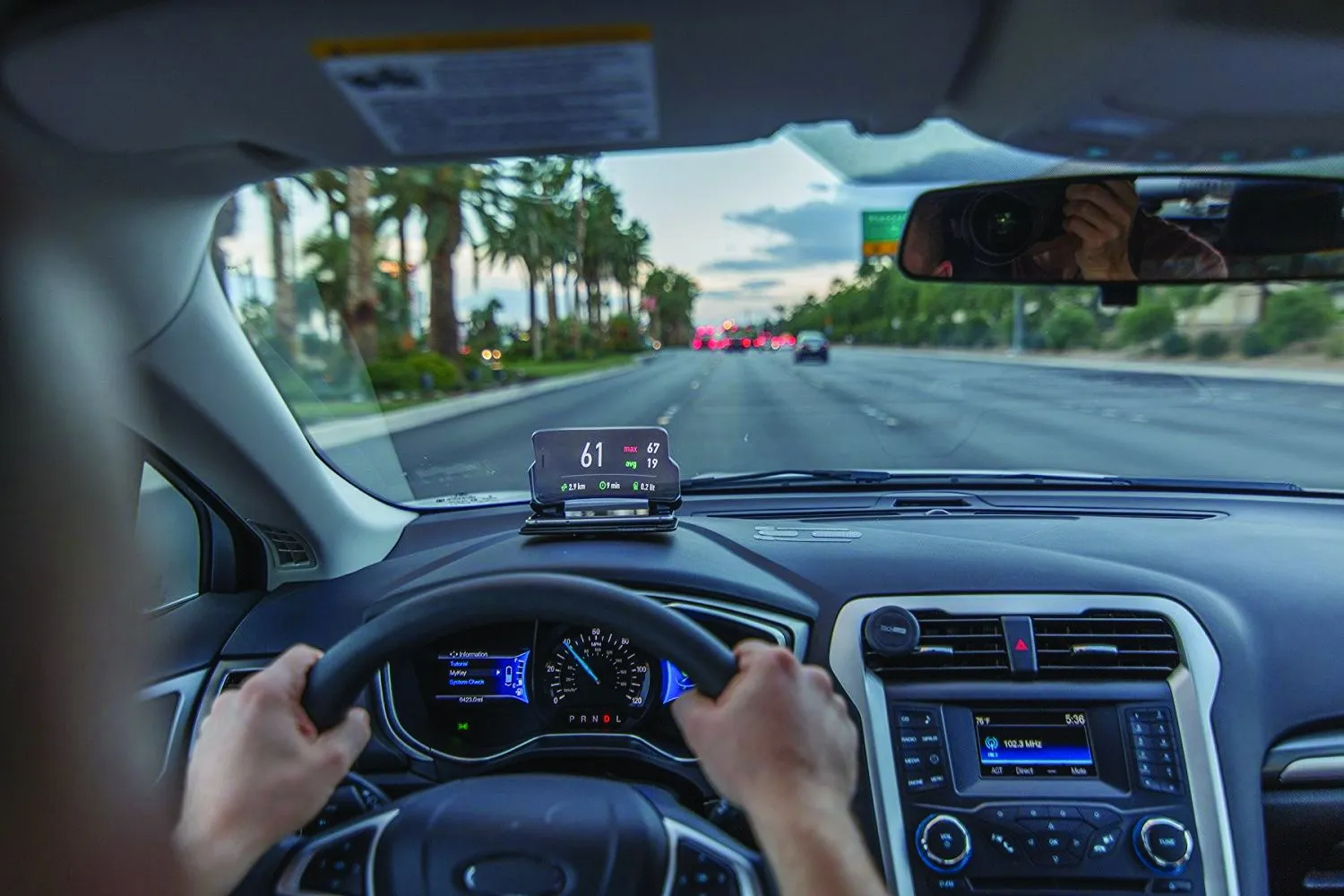
If you enjoy driving, and are looking to add that extra wow factor to your car, as well as your driving experience, getting a HUD or a Heads up Display kit will definitely do the trick. Or you can simply download an app called Hudway. Place it on your dashboard correctly, and you will get your navigation instructions, speed and all other important information on your windshield.
Just make sure that you have a well-charged phone when you use this, as the app uses your location, and forces your screen to go up to its peak brightness.
Keep all versions of all your documents. Forever.
In spite of everything, we just love Google! Even though the tech giant, stealthily keeping all our data in their servers has put us in a precarious position, there is a silver lining with this cloud. If ever you have made a document on Google Drive, and have made several changes to it over a period of time, you have the option of going back to a certain version and revive it. In case you have collaborated with some people over a document, the history will also show the changes that the collaborators have made, and when they made it.
Add signatures to a document digitally, without printing a single sheet of paper.
There have been countless scenarios where you have had to send a soft copy of a document with your signatures on it. Normally, what people do is take a printout, sign the document, scan it, and then mail it wherever it has to be sent. There is a far better, and much easier way to go about all this, especially if you are using a Mac. Open the document using the Preview application, and select the pen tool at the top left-hand corner of the screen and click Create Signature. This should open up the webcam on your Apple computer. Sign your name on a piece of paper, and hold it in front of the camera. Align the paper correctly, using the guidelines on the screen, and click Accept, once a digital copy of your signature appears on the screen. The computer will save the digital version of your signature. Click on the preview and reposition and resize accordingly. To add your signature on some other document, simply click the Signature option, and select your signature from the preview. For a Windows system, simply take a picture of your signature using the webcam and save it as a JPEG or PNG. Add them to your Word Documents as and when needed.
Spotted a mistake, or your photo used without permission? Report a correction